Bubble-tea image conversion: size, colors and background compared
Convert one original illustration at 29×29 and 58×58, compare 8 and 12 colors, then check how cropping and background removal change the material list.
Start from this guide
Open the editor to make a pattern now, or pick a public pattern to practice the workflow.
Convert a bubble-tea illustration into a bead chart
When pearls and facial details disappear in a small chart, should you increase size or add colors? This case changes one setting at a time using the same original illustration. Every preview is actual output from the BeadsCanvas converter, and counts come from its grids. The larger chart is a fresh conversion from the source.
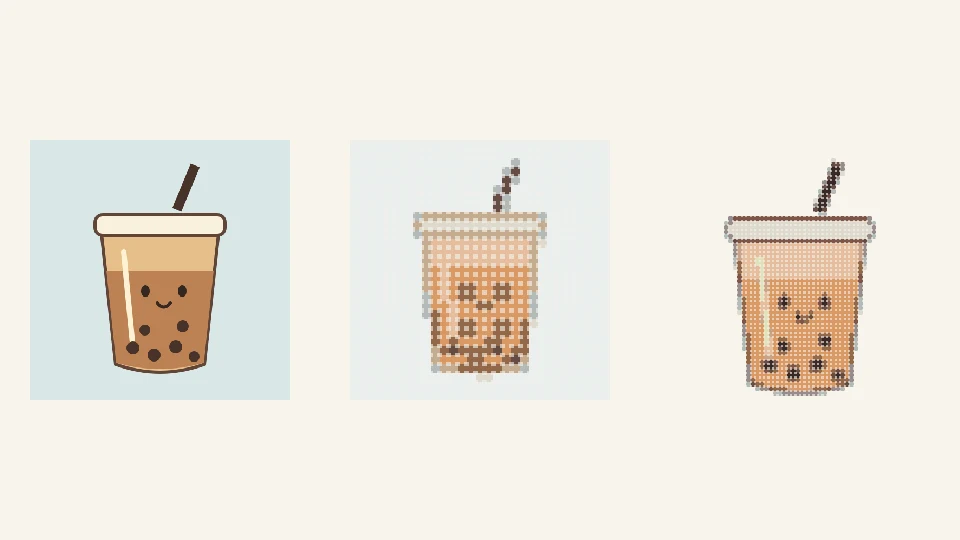
The source is an independently drawn vector illustration rasterized to PNG, not a photograph or a finished bead project. Download the source and open image conversion to try it.

1. Fix the palette and conversion conditions
Every version uses Perler, dithering off and no excluded colors. Compare size and color limits with the full source before cropping or clearing the background.
The source is 480×480 pixels with an opaque background. Before cleanup, every grid cell becomes a bead, including the pale background. A transparent PNG would behave differently.
2. Compare 29×29 and 58×58 with an eight-color limit
Convert separately from the same source at both sizes:
- 29×29: 8 actual colors, 841 beads. Check the cup and straw silhouette first. The face and pearls may merge into blocks.
- 58×58: 8 actual colors, 3364 beads. The rim and face occupy more cells, while the background also grows with the canvas.
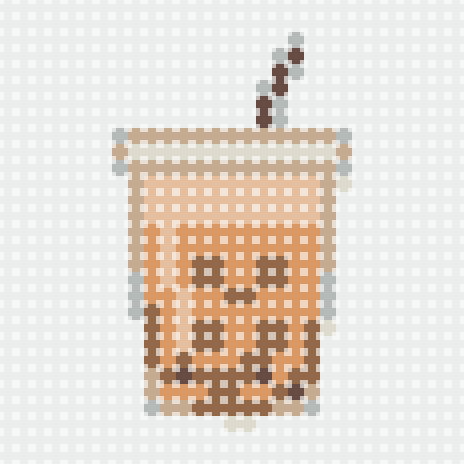
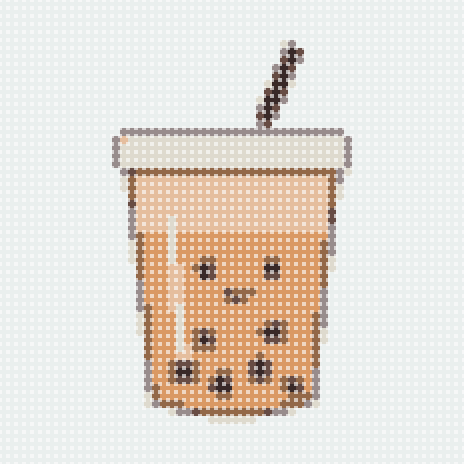
Because this source is fully opaque, doubling both dimensions gives exactly four times as many beads. After removing background cells, width multiplied by height will no longer equal the bead quantity.
3. Compare eight and twelve colors at the same size
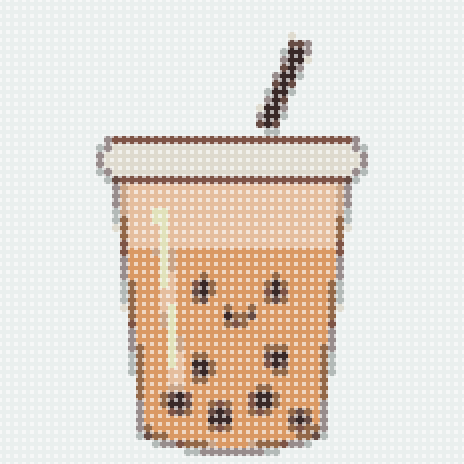
Keep the full source, 58×58 and dithering off. Change only the limit to twelve colors. The result uses 12 actual colors and 3364 beads.
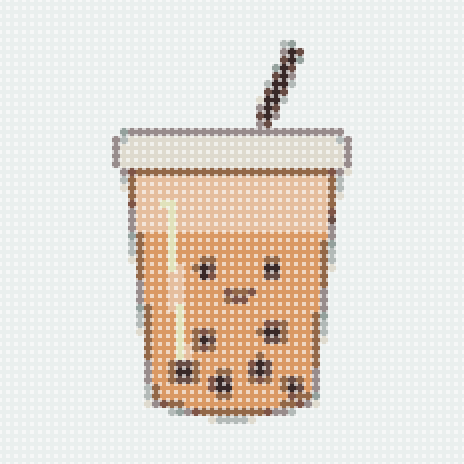
More colors add transitions around the cup and edges, with more IDs to sort. They do not reduce opaque background cells. Check pearl readability alongside subject size. If your supplies are limited, return to eight colors while preserving contrast around the face.
4. Crop square without clipping the straw or cup
This crop begins at 5% of source width and 2% of source height, with width and height both 90% of the source. It stays square, so the cup is not stretched sideways. The straw and cup base remain inside. Adjust the frame for your own image rather than copying these percentages blindly.
Converting this crop from the source at 58×58 with a twelve-color limit still produces 12 colors and 3364 beads. The subject is slightly larger, but the surrounding background remains opaque. Cropping is not background removal.
5. Remove the background and recount materials
Clear the previous result's background with tolerance 6. This removes 2230 beads connected to the edge background. The final chart measures 58×58 with 11 colors and 1134 beads. Removed cells are empty. No manual bead edits were made in this case.
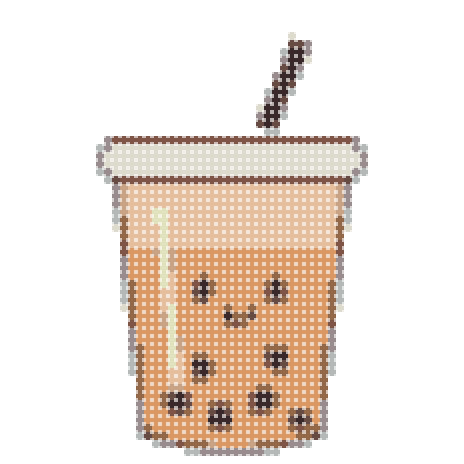
Check that pale lid and highlight cells remain, that the straw meets the rim, and that pearls are readable. Other images may have similar subject and background colors, so the same tolerance will not suit every source. See the pet photo case study for a separate example of manual cell editing.
6. Export from the final grid and plan boards
A 58×58 canvas usually needs four matching, connecting 29×29 square boards. Using 1134 beads does not shrink the canvas; fewer beads do not automatically mean fewer boards.
Review final color IDs and individual quantities before exporting gridded PNG, PDF and materials in the editor. Visual export watermarks depend on your account plan. These previews are counted illustrations, not life-size templates at the browser's displayed size.
For a smaller project, try the hand-drawn tea in the food and dessert collection. That separate 19×18 design uses 3 colors and 116 beads; it is not the automatic result shown here.
FAQ
Why are there eleven colors after a twelve-color conversion?
Twelve is the automatic conversion limit. Background removal eliminates all cells using one color, so the final grid uses eleven. Prepare materials from that final count.
Why did cropping not reduce the bead quantity?
The cropped image still fills a 58×58 output and remains opaque, giving 3364 beads. Cropping changes composition. Background removal creates empty, unfilled cells.
Should every illustration use 58×58?
No. Try 29×29 to check the silhouette and key features first. A simple few-color icon may work well small. This example compares 58×58 to retain a face and pearls.
Keep creating
Read the image conversion settings guide, or return to the pattern maker topic to choose a suitable source.