How to Use Perler Bead Patterns: Download, Edit, and Export
Learn how to turn a public bead pattern into a real project: inspect the size, edit colors, read the material list, and export PDF or PNG files.
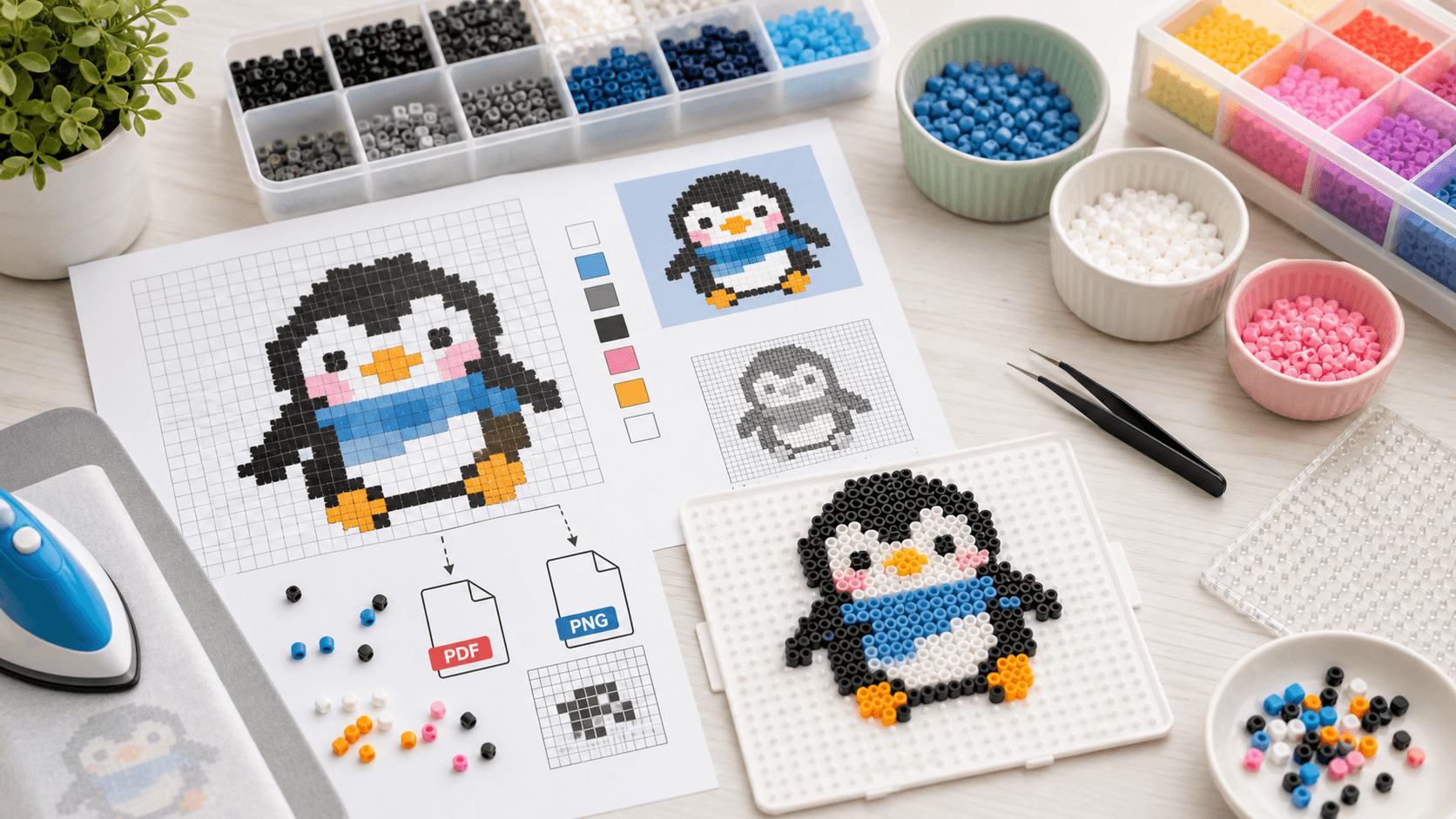
Start from this guide
Open the editor to make a pattern now, or pick a public pattern to practice the workflow.
How to Use Perler Bead Patterns from Browse to Build
When you open a bead pattern for the first time, the main questions are simple: should you print it, edit it, or just follow it on screen? What do the color codes mean? Where is the material list?
This guide walks through the practical workflow inside BeadsCanvas.
In the pattern gallery, you can start with search, difficulty filters, and topic links before opening a design in the editor.
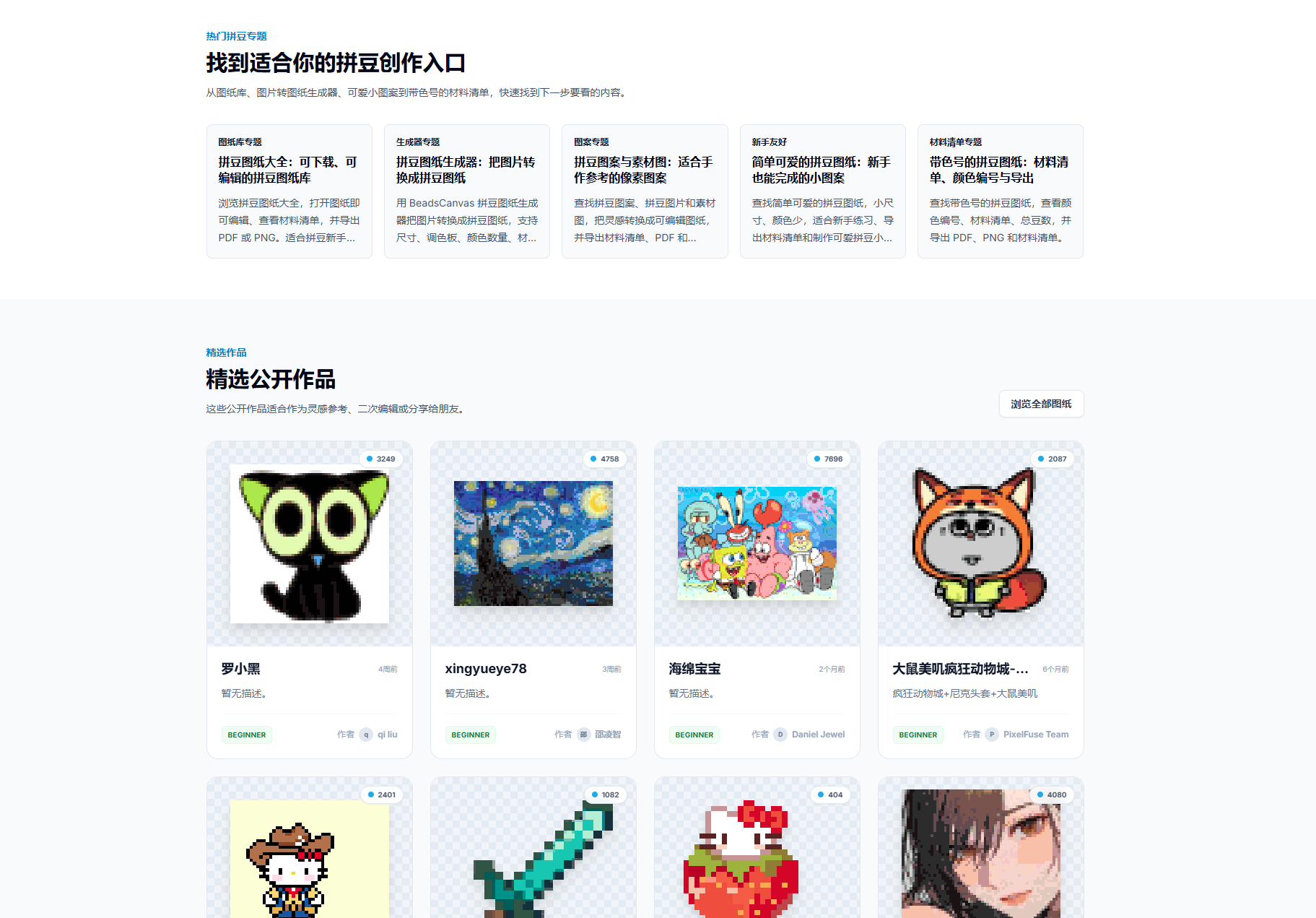
1. Check the pattern size first
Before you start building, look at:
- Width and height: This tells you how many pegboards you need.
- Color count: More colors means more preparation.
- Total beads: This helps estimate how much material you need.
For beginners, a 29x29 pattern or smaller is much easier to finish.
2. Open the pattern in the editor
Public patterns can be opened in the editor. From there, you can:
- Zoom into small details.
- Replace colors you do not own.
- Clean up edges and shadows.
- Export a fresh material list.
If you use a specific bead brand, switch the palette before exporting so the color list is easier to shop from.
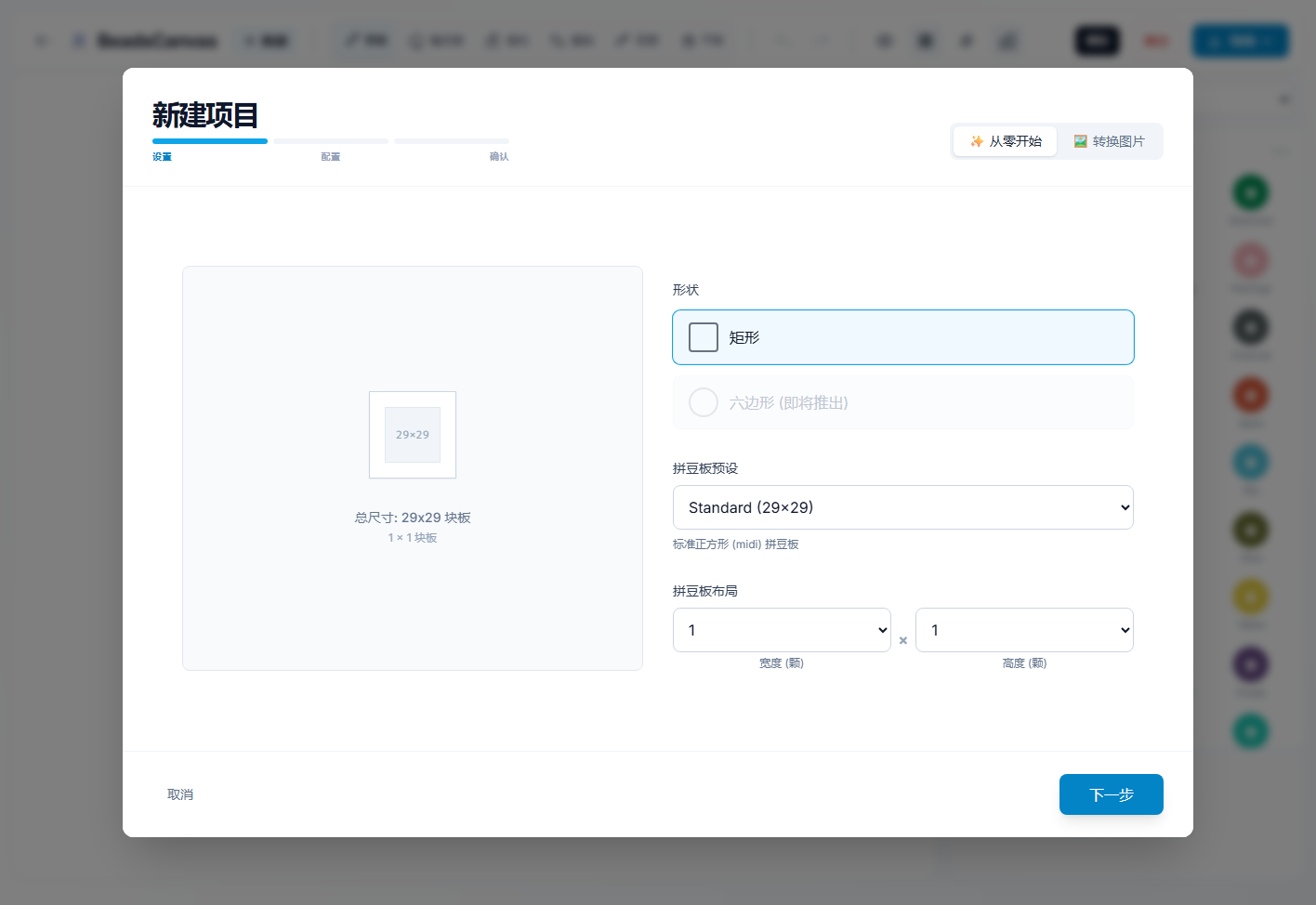
If you want to start from scratch, create a new project in the editor, choose the pegboard size, and then continue into drawing and export.
3. Read the material list
The material list shows how many beads each color needs. Prepare in this order:
- Start with black, white, and main colors.
- Add shadow and highlight colors.
- Keep similar colors separated so they are not mixed up while building.
Colors used only a few times can often be replaced, but eyes, outlines, and highlights should stay close to the original.
4. Export PDF for printing
PDF is best when you want an offline guide. It usually includes:
- Pattern pages.
- Grid and color labels.
- Material list.
- Color counts.
For smaller projects, you can also keep the browser open and zoom in instead of printing.
5. Export PNG for sharing
PNG exports are useful for:
- Saving a preview.
- Sharing with friends.
- Posting to social media.
- Keeping a project record.
Free visual exports include a BeadsCanvas watermark. Pro users can export without the free watermark or set a custom text watermark.
6. Pre-build checklist
Before placing the first bead, confirm:
- You have enough pegboards.
- Main colors are ready.
- Large designs may need the tape method.
- Ironing paper, iron, and heavy books are nearby.
- The pattern is easy to view while you work.
FAQ
Are public patterns free to download?
Public patterns can be viewed, edited, and exported according to your account benefits. Visual exports may include a watermark for free users.
What if I do not own the exact colors?
Replace colors in the editor. Keep outlines, eyes, highlights, and major color blocks as close as possible.
How should I handle large patterns?
Build them in pegboard sections and consider the tape method before ironing. Avoid long direct heat on pegboards.
Next step
Browse the pattern gallery for a simple design, or open the editor to customize your own.
For a broader overview of printable and editable designs, continue with Perler bead patterns. Before building, it also helps to read the color codes guide, patterns with color codes, and how to iron Perler beads.